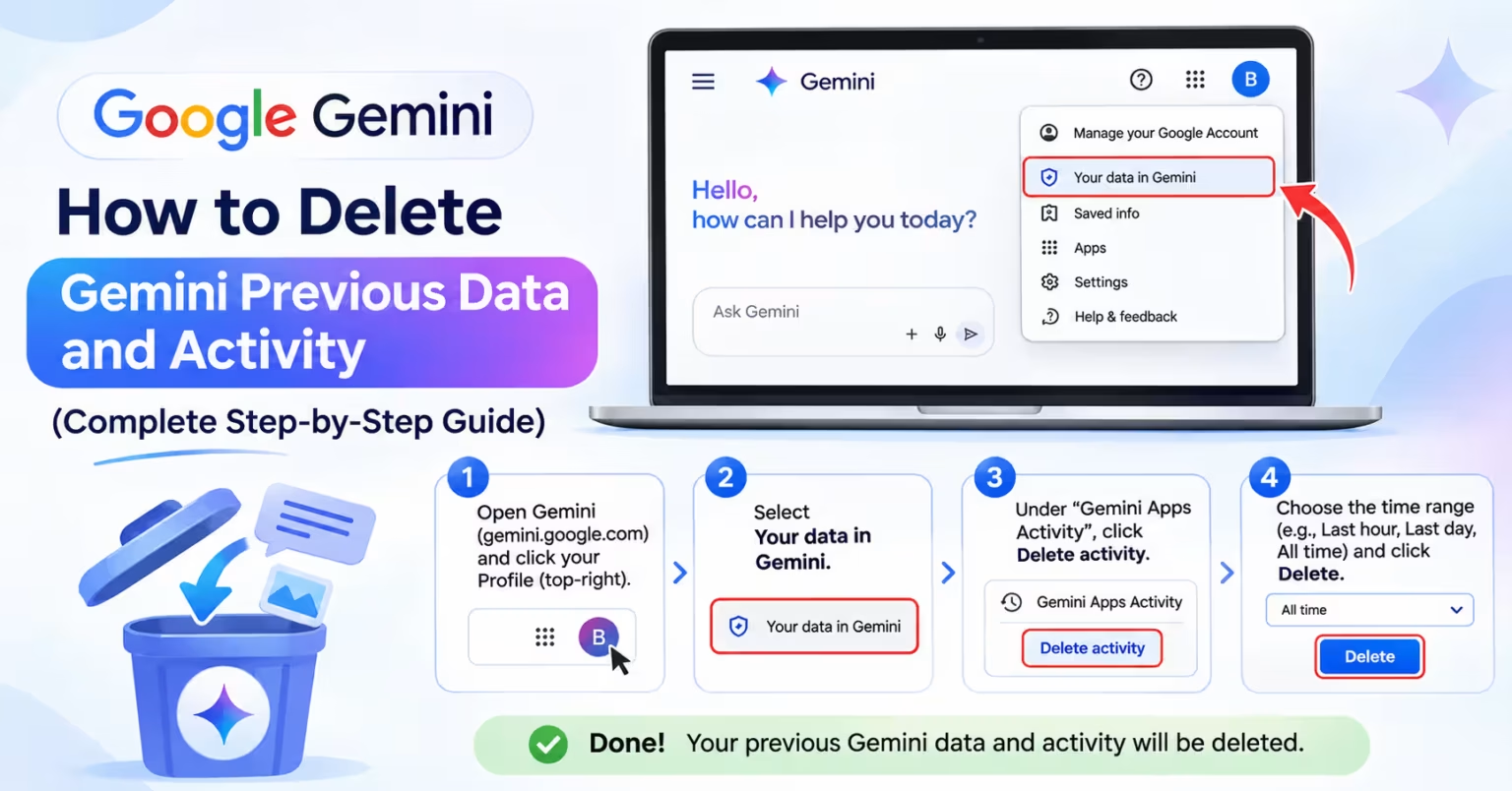
Whenever you interact with Google Gemini, your prompts, uploaded files, and AI responses are automatically logged to help refine responses and personalize your experience. However, if you have entered sensitive business queries, shared personal details, or simply want a clean slate, removing your digital footprint is straightforward.
For more tutorials and tech optimization strategies, visit our homepage at TechDeployers.
Why Manage and Delete Your Gemini Activity?
Google retains your Gemini Apps Activity under your Google Account by default (for users 18 and older). A subset of conversation logs can also be evaluated by human reviewers to train models. Deleting your activity:
- Prevents confidential text, code, or personal inquiries from remaining in your history.
- Cleans up your sidebar workspace for better productivity.
- Ensures compliance with workplace data handling standards. Learn more about enterprise workflows at TechDeployers Solutions.
Method 1: Delete a Single Chat from the Sidebar
If you only need to remove a specific discussion rather than wipe your entire account log:
- Open gemini.google.com on your desktop browser.
- In the left-hand sidebar under Recent, locate the conversation you want to remove.
- Click the three vertical dots (…) next to the chat title.
- Select Delete and confirm.
(Note: Deleting a chat directly from the sidebar also purges that conversation from your underlying Gemini Apps Activity.)
Method 2: Delete All or Custom History via Gemini Apps Activity
To delete large batches, date ranges, or your entire conversation archive:
- Go to gemini.google.com.
- Click Settings & help (gear icon) in the bottom-left corner and select Activity (or navigate directly to myactivity.google.com/product/gemini).
- Above your logged prompts, click the Delete dropdown button.
- Choose the timeframe you wish to erase:
- Last hour
- Last day
- Custom range (select start and end dates)
- All time (deletes all recorded activity associated with the account)
- Review the confirmation prompt and click Delete.
Method 3: Delete Gemini Data on Mobile (Android & iOS)
If you interact with Gemini primarily through your smartphone:
- Open the Gemini app (or the Google app on iOS with Gemini enabled).
- Tap your Profile icon in the top right.
- Tap Gemini Apps Activity.
- Tap the Delete button positioned just above your timeline.
- Select All time or pick a specific range to finalize the cleanup.
How to Turn Off Activity Tracking or Set Auto-Delete
Instead of manually purging data every week, you can automate or pause the process entirely.
1. Set Up Auto-Delete
- Navigate to Gemini Apps Activity.
- Look for Auto-delete (typically defaulted to 18 months).
- Change the retention window to 3 months, 18 months, or 36 months.
- Click Next and confirm.
2. Pause Tracking (Keep Activity Off)
- In the Gemini Apps Activity dashboard, look for Keep Activity.
- Click Turn off, or select Turn off and delete activity to also erase past records immediately.
- Note: When disabled, new prompts will not appear in your activity log, though Google temporarily retains operational prompts for up to 72 hours for system and feedback processing.
Need help securing enterprise cloud environments and implementing AI governance policies? Reach out to the specialists at TechDeployers Contact Us.
How to delete Gemini previous data and activity on desktop
How to delete Gemini chat history on Android and iPhone
How to delete a single Gemini conversation
How to delete all Gemini activity at once
How to turn off Gemini Apps Activity
How to set up auto-delete for Gemini activity
How to download your Gemini data before deleting it (Google Takeout)
How to delete Gemini activity from myactivity.google.com
How to check if your Gemini data has been deleted